Install Steam, sign in, and get your Linux gaming library ready. Choose the section for your distribution, then follow the shared setup steps below.
Before you start
These native-package instructions are for 64-bit Intel/AMD desktop installations. Use an up-to-date system, working graphics drivers, an internet connection, and enough local disk space for your games. Choose only your distribution’s section. Commands that begin with sudo ask for your Linux password; the terminal normally shows no characters while you type it.
[Debian] Install Steam
Debian requires enabling contrib and non-free in your existing repositories before Steam packages become available. On Debian 13 (Trixie), open your sources file:
# Open your debian.sources file:
sudoedit /etc/apt/sources.list.d/debian.sources

# Ensure your Components line includes contrib and non-free:
Components: main contrib non-free non-free-firmware
If your installation uses /etc/apt/sources.list instead, add contrib non-free to the components on its existing Debian repository lines without changing your release name.
Next, enable 32-bit architecture, refresh the package lists, install Steam, and install matching 32-bit Vulkan drivers in this unified terminal workflow:
# Add 32-bit package architecture and install Steam:
sudo dpkg --add-architecture i386
sudo apt update
sudo apt install steam-installer

# For AMD or Intel graphics using Mesa (install 32-bit Vulkan libraries):
sudo apt install mesa-vulkan-drivers mesa-vulkan-drivers:i386 libglx-mesa0:i386 libgl1-mesa-dri:i386
For NVIDIA’s proprietary driver, use its matching 32-bit libraries rather than substituting a different graphics driver. Follow your distribution’s NVIDIA setup instructions for your card. References: Debian Steam instructions and Debian repository configuration.
[Fedora] Install Steam
On Fedora Workstation, open Software → Software Repositories settings, enable third-party repositories, and enable the RPM Fusion Steam source. Or run this consolidated terminal workflow to enable repositories and install Steam:
# Install workstation repository definitions if missing:
sudo dnf install fedora-workstation-repositories

# Enable RPM Fusion Steam source and install Steam:
sudo dnf install steam
If you already enabled the full RPM Fusion repositories, you can use that installation command directly. For Fedora KDE, use Discover’s repository settings or the RPM Fusion configuration instructions before installing Steam. Fedora Atomic desktops such as Silverblue and Kinoite use a different software-management model; use their Flatpak workflow instead of these DNF steps. Reference: Fedora’s third-party repository guide.
[Arch Linux] Install Steam
Steam on Arch Linux requires the 32-bit multilib repository enabled in pacman’s configuration:
# 1. Edit pacman configuration:
sudoedit /etc/pacman.conf

# 2. Uncomment the [multilib] section and its Include line:
[multilib]
Include = /etc/pacman.d/mirrorlist

# 3. Synchronize package databases and install Steam:
sudo pacman -Syu steam
When pacman prompts for OpenGL and Vulkan providers, select the packages that match your hardware (e.g. lib32-vulkan-radeon for AMD, lib32-intel-vulkan for Intel, or lib32-nvidia-utils for NVIDIA). Reference: Arch Wiki Steam guide.
Launch Steam and complete initial setup
Open Steam from your application menu or run steam in a terminal. On first launch, Steam downloads its bootstrap runtime into ~/.local/share/Steam. Sign in with your Steam account or create one. Connect your library directory if you store games on a separate drive.
Enable Proton for your Windows games library
Proton is a compatibility layer developed by Valve that allows Windows games to run smoothly on Linux. While games marked “Steam Deck Verified” or “Native Linux” run out of the box, you must enable Proton for your full Windows backlog:
- Open Steam → Settings (or Preferences).
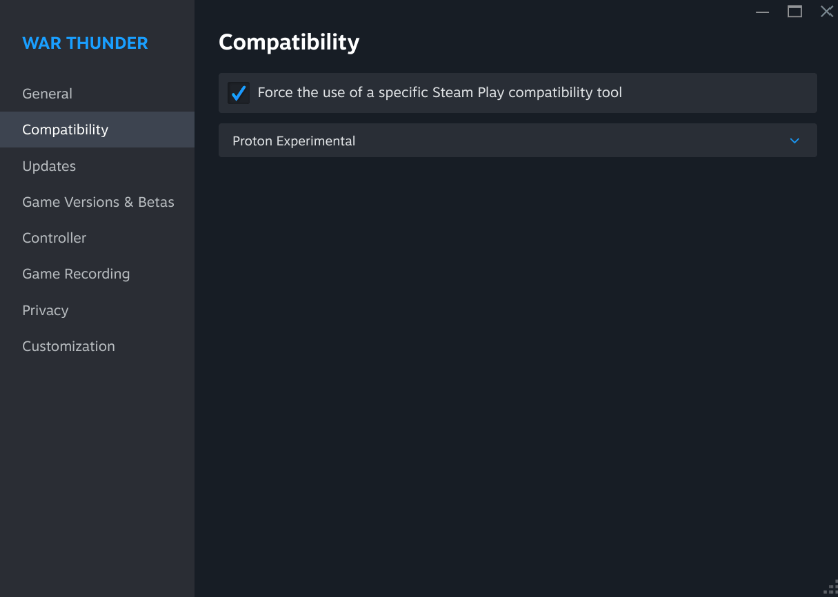
- Navigate to the Compatibility tab on the left.
- Toggle on Enable Steam Play for supported titles.
- Check Enable Steam Play for all other titles.
- In the dropdown, select Proton Experimental or the highest numbered stable version (e.g., Proton 9.0).
- Click OK and restart Steam when prompted.
Troubleshooting common setup issues
If Steam fails to launch or games crash immediately, verify these three essential checks:
1. Verify 32-bit graphics drivers: Steam itself is a 32-bit application. If 32-bit Vulkan drivers are missing, games will fail silently. Confirm with vulkaninfo --summary.
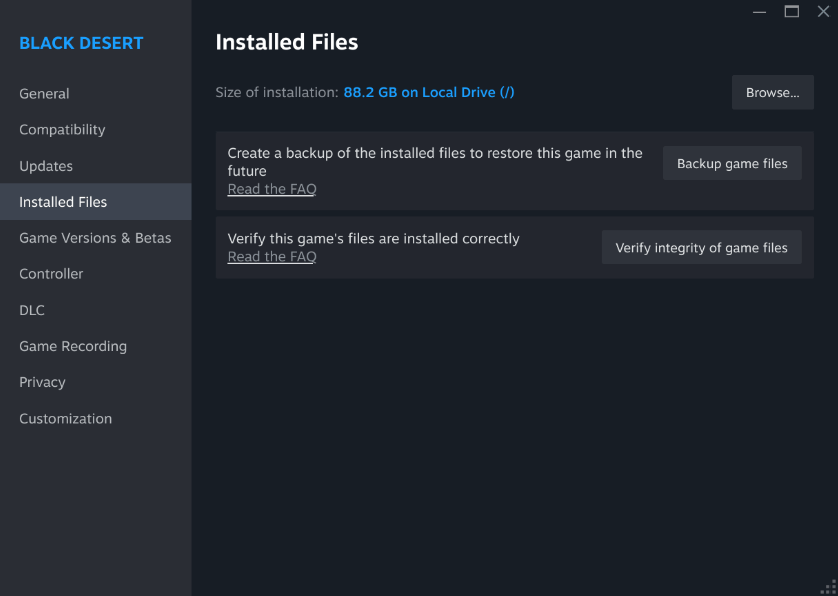
2. Verify game file integrity: Right-click any game in your Steam Library → Properties → Installed Files → click Verify integrity of game files.
3. NTFS / External Drive mounts: If storing games on an NTFS-formatted external Windows drive, ensure you mount the drive with proper POSIX execution permissions (uid, gid, and exec options in /etc/fstab) so Proton can create its wineprefixes.
Keep your system and drivers current
Keep your system updated using your package manager (apt upgrade, dnf upgrade, or pacman -Syu). Game compatibility on Linux improves weekly as Valve releases Proton updates.