
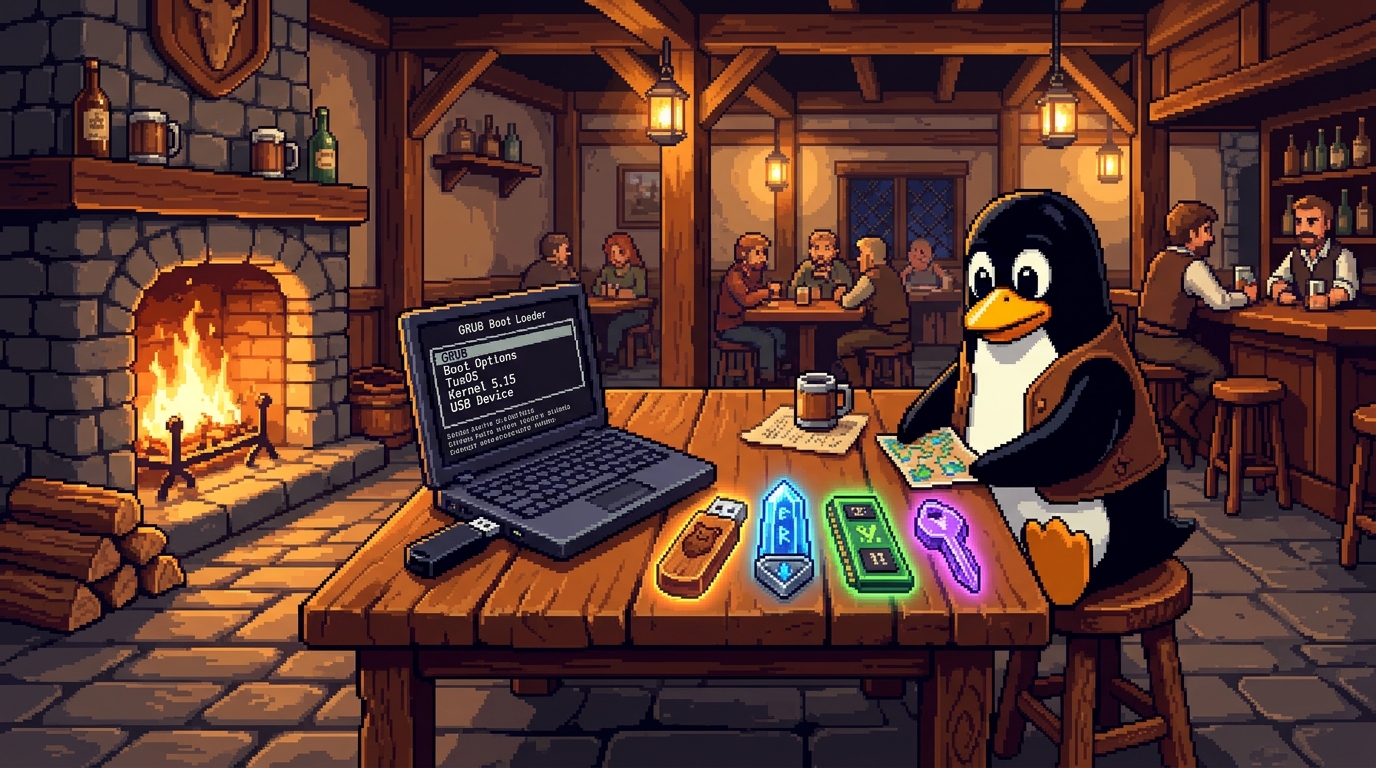
When you download a Linux .iso file, you cannot just copy and paste it onto a regular flash drive and expect your computer to start from it—unless that drive has been prepared by a bootable USB tool.
On the desktop, Fedora Media Writer is my go-to because it is simple and always just works. And when I am away from a working desktop, I cannot tell you how many times I have used my Google Pixel with EtchDroid to make a boot stick right from my phone. Here is how the tools I actually rely on compare with two other names that come up in Linux guides: Ventoy and balenaEtcher.
| Tool | Platforms | Approach | Best for |
|---|---|---|---|
| Fedora Media Writer | Linux, Windows, macOS | Single ISO + built-in USB reset | My everyday desktop pick—simple and reliable |
| EtchDroid | Android (USB-C / OTG) | Single Linux ISO from phone | Making a rescue or install USB on a Pixel / Android phone |
| Ventoy | Linux, Windows | Multi-ISO boot menu | Keeping multiple Linux ISOs & files on one stick |
| balenaEtcher | Linux, Windows, macOS | Single ISO (3-step UI) | Popular in tutorials, though heavier than needed |
How the four USB tools compare
Fedora Media Writer: my everyday desktop pick
Despite the name, Fedora Media Writer is not locked to Fedora. Its custom image option (Select .iso file) writes almost any standard Linux distribution—whether you are installing Ubuntu, Linux Mint, Kubuntu, Nobara, or MX Linux. It is a fast, native Qt application with no ads or promotional banners, and for me it simply works every time without fuss.
Its best bonus feature is built-in USB recovery. When you finish installing Linux, your USB stick is left with boot partitions that Windows and some file managers complain about. When you plug that stick back in with Fedora Media Writer open, it offers a one-click Restore button to wipe the installer partitions and return the drive to normal storage.
Official links: GitHub Releases (Windows, macOS, Linux) · Flathub (Linux) · Fedora Documentation
EtchDroid: making a boot stick right from my Google Pixel
What happens if your main computer refuses to boot, or you need a Linux installer when you do not have a working PC handy? I cannot tell you how many times I have used my Google Pixel and EtchDroid to make a bootable USB stick right from my phone. With a USB-C thumb drive (or a simple USB-A to USB-C adapter), your phone becomes a pocket recovery tool—and EtchDroid is free, open-source, ad-free, and does not require root access.
Keep its compatibility limits in mind before starting: EtchDroid is built for modern hybrid GNU/Linux ISOs (Ubuntu, Mint, Debian, Fedora, Arch, MX Linux, and most desktop distros) and raw disk images, so it cannot create bootable Windows 10/11 installers. Make sure your phone has plenty of battery, and keep the adapter flat on the desk so a loose USB connection does not interrupt the write.
Official links: EtchDroid Website · Google Play · F-Droid · GitHub
Ventoy: best for keeping multiple ISOs on one stick
Traditional image writers overwrite your entire USB drive each time you try a different distribution. Ventoy works differently: you format your USB stick with Ventoy once, and it turns the rest of the drive into a normal storage partition. After that, you simply drag and drop .iso files onto the USB drive in your regular file manager and pick which one to boot from Ventoy’s startup menu.
You can still keep normal folders, backup scripts, or documents on the same stick right alongside your Linux ISOs. Just remember two things: on some PCs, Secure Boot may ask you to enroll a key on first boot (or temporarily disable Secure Boot in UEFI), and because you copy multi-gigabyte ISOs in your file manager, always wait for the transfer to finish before unplugging (see our guide to safely ejecting a USB drive on Ubuntu).
Official links: Ventoy Downloads · GitHub Repository · Get Started Guide
balenaEtcher: widely mentioned, though I have never needed it
I had not actually used balenaEtcher myself before putting this comparison together, because Fedora Media Writer on my PC and EtchDroid on my Pixel already cover everything I need. You will see Etcher recommended in many beginner guides because of its three-button layout (Flash from file → Select target → Flash!) and because it hides internal system drives by default.
Looking at its specifications, however, it bundles a full Electron/Chromium runtime—making it a much heavier download for a simple image writer—and it lacks Fedora Media Writer’s built-in button to restore your USB stick to normal storage afterward.
Official links: balenaEtcher Website · GitHub Releases
Which one should you pick, and what to check first
For a single Linux install from a desktop or laptop, start with Fedora Media Writer—it is simple, writes any standard Linux ISO, and makes resetting the USB drive effortless when you are done. Keep EtchDroid on your Android phone so you can always burn a Linux boot stick from your pocket, and look at Ventoy if you want several distros sitting on one 32 GB+ thumb drive.
- Back up the USB stick first: Flashing an image (or installing Ventoy for the first time) erases everything on the USB drive. Copy off any files you want to keep, and unplug other external drives so you cannot pick the wrong disk.
- Cancel Windows format prompts after flashing: Once your Linux USB is written, Windows may pop up a “You need to format the disk in drive…” dialog because it does not recognize the Linux/EFI partitions. Click Cancel so you do not wipe your new installer.
- Next steps: Once your drive is ready, follow our guides on How to Install Linux with a USB Stick or Give Your Old PC a Second Life: How to Install Linux Mint or MX Linux.
Optional gear
Affiliate disclosure: As an Amazon Associate I earn from qualifying purchases, at no extra cost to you. Commissions do not influence our recommendations.
Browse 32 GB USB 3.0 flash drives on Amazon (paid link). Choose a USB-A or dual USB-C/USB-A connector that matches your computer and phone.
AI-generated category illustration; not a product photo.
You do not need to buy anything to follow this article. Check the exact connector, capacity, and seller before buying.


