How many of us have an old laptop or desktop sitting in a closet gathering dust? Maybe it once ran Windows 7 or Windows 10, but over the years it became slower and less enjoyable to use. Before you throw it away, consider a different operating system. Linux may give that hardware a useful second life.
Two distributions worth trying are Linux Mint and MX Linux. They’re free to download, approachable, and offer different desktops to suit different needs. The goal isn’t to chase impressive specifications; it’s to use the computer you already own.
Why I Like Linux Mint — Even Though I’m a KDE Guy
I’ve always had a soft spot for Linux Mint. It’s an approachable way to learn Linux: install it, browse the web, manage files, install applications, and get on with everyday computing without becoming a terminal expert.
But Cinnamon has never really been my thing. I’ve preferred KDE Plasma since I got into Linux, and at this point I can’t imagine giving it up. Funny enough, while I don’t particularly like Windows, I’ve grown comfortable with a desktop that has a familiar taskbar, launcher, and system tray. KDE gives me that familiarity and far more freedom to customize it.
Linux Mint does not offer an official KDE edition. For older PCs, I would suggest trying its Xfce edition, which uses a traditional, straightforward desktop.
Enter MX Linux
MX Linux is Debian-based and offers Xfce, KDE Plasma, and Fluxbox editions. If you want KDE, the official MX Linux KDE edition is a natural option, with useful MX system tools and a customizable desktop. If your machine is truly constrained, consider Xfce or Fluxbox instead.
KDE Plasma can be quite responsive on modest hardware, but it isn’t necessarily the lightest choice. What matters most is your processor, RAM, storage, graphics support, and which applications you actually run.
Which Should You Choose?
Choose Linux Mint Xfce if you’re new to Linux and want a straightforward starting point. Choose MX Linux KDE if you enjoy Plasma’s Windows-like layout and customization. For especially old systems, MX Linux Fluxbox may be worth testing. Neither distribution can make modern browsers effortless on a severely underpowered computer.
Before You Begin
You’ll need a supported 64-bit computer, a USB drive of at least 8 GB, an internet connection for downloading the ISO, and a separate backup of anything important. Creating the bootable installer erases the USB drive, and installing Linux can erase the computer’s internal drive if you choose the wrong option.
If you’re still running a mechanical hard drive, upgrading to a SATA SSD can substantially improve responsiveness. But test Linux first: some older Wi-Fi adapters, graphics chips, or unusual peripherals may need extra work.
Step 1: Download the Installation Image
Get Linux Mint from linuxmint.com/download.php or MX Linux from mxlinux.org/download-links/. Choose Mint Xfce or the MX edition that matches your goals. Download the ISO image, and verify its checksum and, when provided, signature using the project’s official instructions.
Step 2: Create a Bootable USB
Use a trusted imaging utility such as balenaEtcher to select the ISO, choose the correct USB drive, and flash it. Double-check the drive selection—its existing contents will be overwritten. Once completed, safely eject the USB stick.
Step 3: Boot the Old PC from USB
Insert the installer and restart your computer. Open its boot menu—often F12, F9, F11, or Esc, depending on the manufacturer—and select the USB drive. If you can’t boot, review the computer’s firmware mode and your distribution’s boot instructions before changing settings.
Step 4: Try the Live Desktop
This is my favorite part. Before installing anything, test the live system. Connect to Wi-Fi, listen for audio, confirm the display resolution, open the file manager, and see whether the keyboard, touchpad, and graphics behave properly. Take time to explore Mint Xfce or MX Linux KDE and decide whether you actually enjoy using it.
Step 5: Install Linux Carefully
Launch the installer from the live desktop. Follow its prompts for language, keyboard, location, user account, and target disk. Read the disk selection and partitioning screens carefully. An erase-disk option will remove existing data from the selected disk. Do not proceed unless your backup is confirmed and that is what you intend.
Dual-booting Windows and Linux is possible but more complicated; it deserves its own guide. For a first experiment, a spare computer or dedicated drive is often less stressful. Finish the installation, reboot, and remove the USB installer when prompted.
Step 6: Update and Configure
Use Linux Mint’s Update Manager or MX Linux’s graphical update tools. On either Debian-based distribution, you can also open a terminal and run:
sudo apt update
sudo apt upgrade
Restart if prompted. Check available drivers and system backup or snapshot tools. Then install the apps you need, rather than loading the machine with unnecessary extras.
Step 7: Make It Yours
Linux is about choice. Mint offers an approachable traditional desktop; MX Linux KDE offers an especially flexible layout. Customize the panel, application launcher, shortcuts, and appearance until the machine feels comfortable. You don’t have to use a desktop you dislike just because someone else recommends it.
What Linux Won’t Fix
Linux isn’t a magic cure for ancient hardware. A low-memory machine might handle basic writing tasks but still struggle with modern browser tabs, high-resolution streaming, or video calls. You may also encounter hardware compatibility challenges. Test realistically and keep important files backed up.
Final Thoughts: Use What Works
There is a tendency in technology to make us believe we always need something newer, faster, and more expensive. Sometimes we really do need better hardware. But sometimes the computer sitting in the closet still has everything required for writing, browsing, coding, or learning.
I might always gravitate toward KDE Plasma, while someone else prefers Mint Xfce. That’s the beauty of Linux: we get to choose based on our needs.
Use what works. Upgrade when it matters. Don’t confuse newer with necessary.
Optional gear
Affiliate disclosure: As an Amazon Associate I earn from qualifying purchases, at no extra cost to you. Commissions do not influence our recommendations.
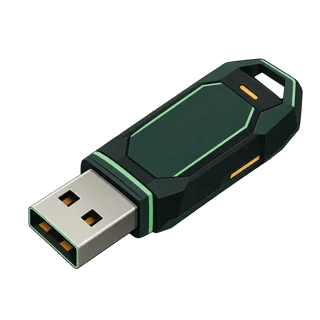
Samsung BAR Plus 128GB USB-A flash drive on Amazon (paid link). An optional USB-A drive for a Linux installer. Writing an installer erases the selected drive; preserve its existing files first.
AI-generated category illustration; not a product photo.
You do not need to buy anything to follow this article. Check the exact model, seller and compatibility before buying.